> For the complete documentation index, see [llms.txt](https://docs.deepsafe.network/llms.txt). Markdown versions of documentation pages are available by appending `.md` to page URLs; this page is available as [Markdown](https://docs.deepsafe.network/user-guide/crva-maintaining/local-lan-configuration-for-sgx.md).
# Local LAN Configuration for SGX
To realize local LAN Configuration for SGX, you need to start a local LAN PCCS service locally or on the LAN, and then change the `pccs_url` in the `sgx_default_qcnl.conf` file on all local CRVAs to the local LAN PCCS link (for example, if the PCCS service is deployed on `host1`, then it should be "pccs\_url": "").
You may refer to the steps for more details:
### Applying for an Intel API Key
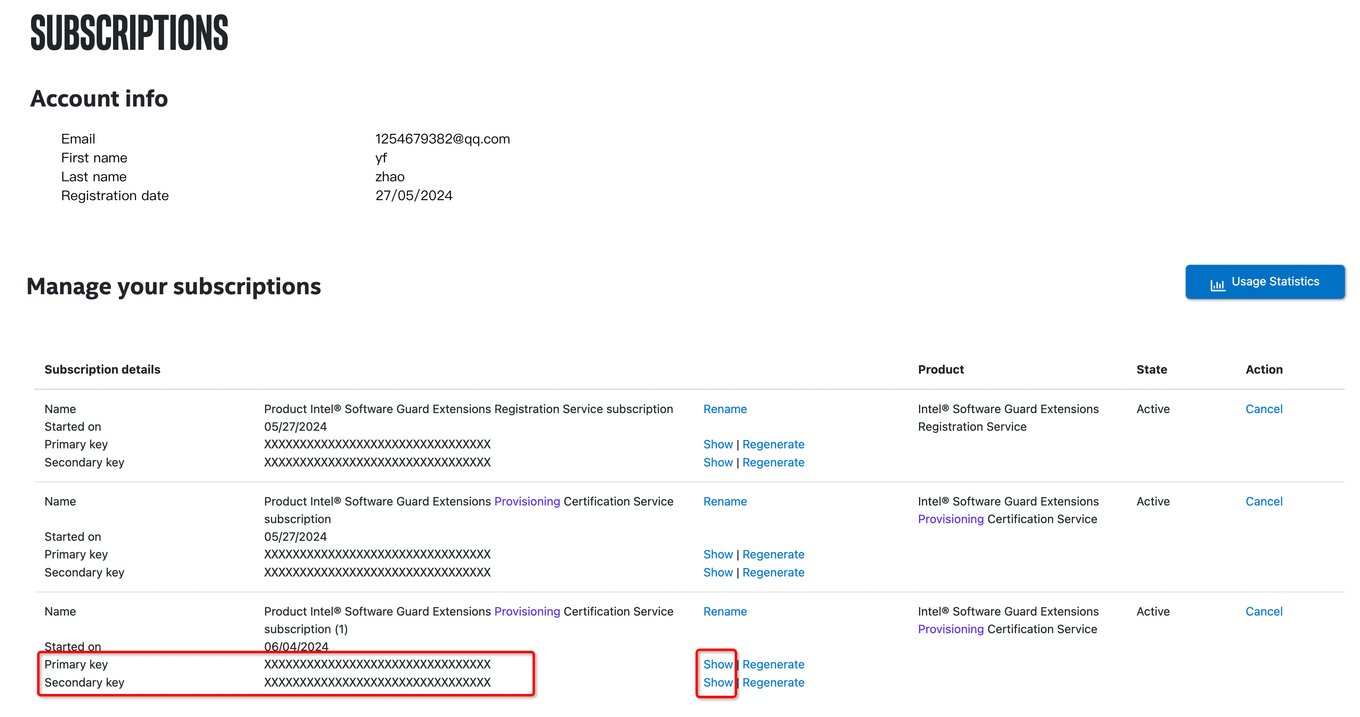
You'll need to acquire an Intel API key to utilize Intel's Software Development Kit (SDK) for Intel SGX (Software Guard Extensions). This key grants you access to Intel's resources and enables you to develop and deploy SGX-based applications.
**Steps:**
1. **Create an Intel Developer Zone Account:** If you don't already have one, create an account on the Intel Developer Zone website.
2. **Navigate to the Intel API Key Management Page:** Once logged in, go to the Intel API Key Management page.
3. **Select the "Intel SGX SDK" Product:** Choose the "Intel SGX SDK" product from the list of available products.
4. **Provide Required Information:** Fill out the requested information, including your name, organization, and project details.
5. **Submit the Request:** Review the information you've provided and submit the request. Intel will evaluate your request and notify you of the outcome.
{% embed url="" %}
### Installing a Local LAN PCCS Service
```powershell
Ubuntu18.04:
curl -fsSL https://download.01.org/intel-sgx/sgx_repo/ubuntu/intel-sgx-deb.key | sudo apt-key add -
sudo add-apt-repository "deb [arch=amd64] https://download.01.org/intel-sgx/sgx_repo/ubuntu $(lsb_release -cs) main"
sudo curl -sL https://deb.nodesource.com/setup_16.x | sudo bash -
sudo apt-get install -y nodejs
sudo apt install cracklib-runtime -y
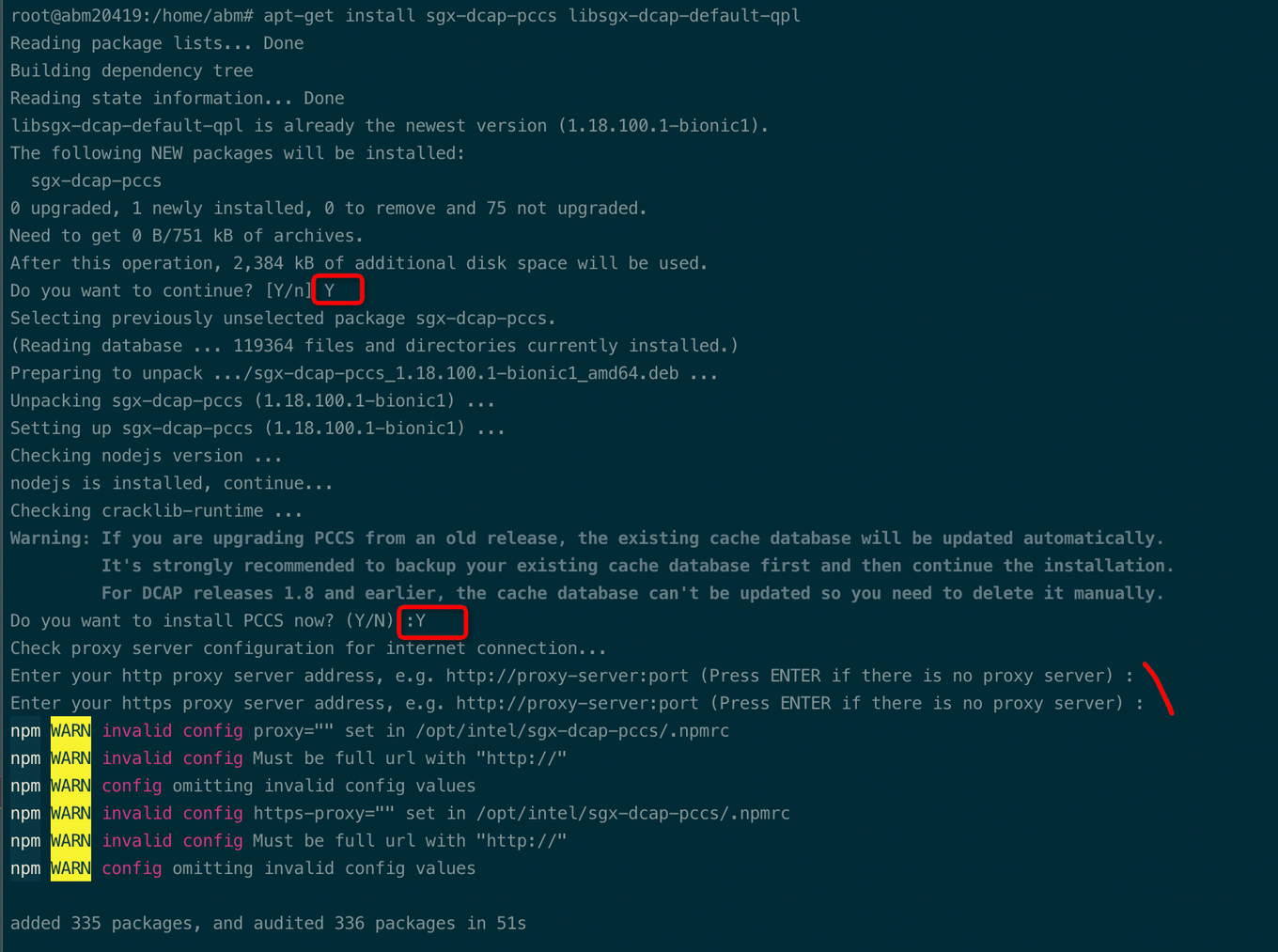
sudo apt-get install sgx-dcap-pccs libsgx-dcap-default-qpl
systemctl status pccs
Ubuntu24.04:
sudo apt update && sudo apt upgrade -y
sudo apt install -y build-essential curl wget openssl libssl-dev pkg-config
sudo echo 'deb [arch=amd64] https://download.01.org/intel-sgx/sgx_repo/ubuntu focal main' | sudo tee /etc/apt/sources.list.d/intel-sgx.list
curl -fsSL https://download.01.org/intel-sgx/sgx_repo/ubuntu/intel-sgx-deb.key | sudo apt-key add -
sudo apt update
curl -fsSL https://deb.nodesource.com/setup_20.x | sudo -E bash -
sudo apt install -y nodejs=20.11.1-1nodesource1
sudo apt install cracklib-runtime -y
sudo apt install -y sgx-dcap-pccs libsgx-dcap-default-qpl
systemctl status pccs
```
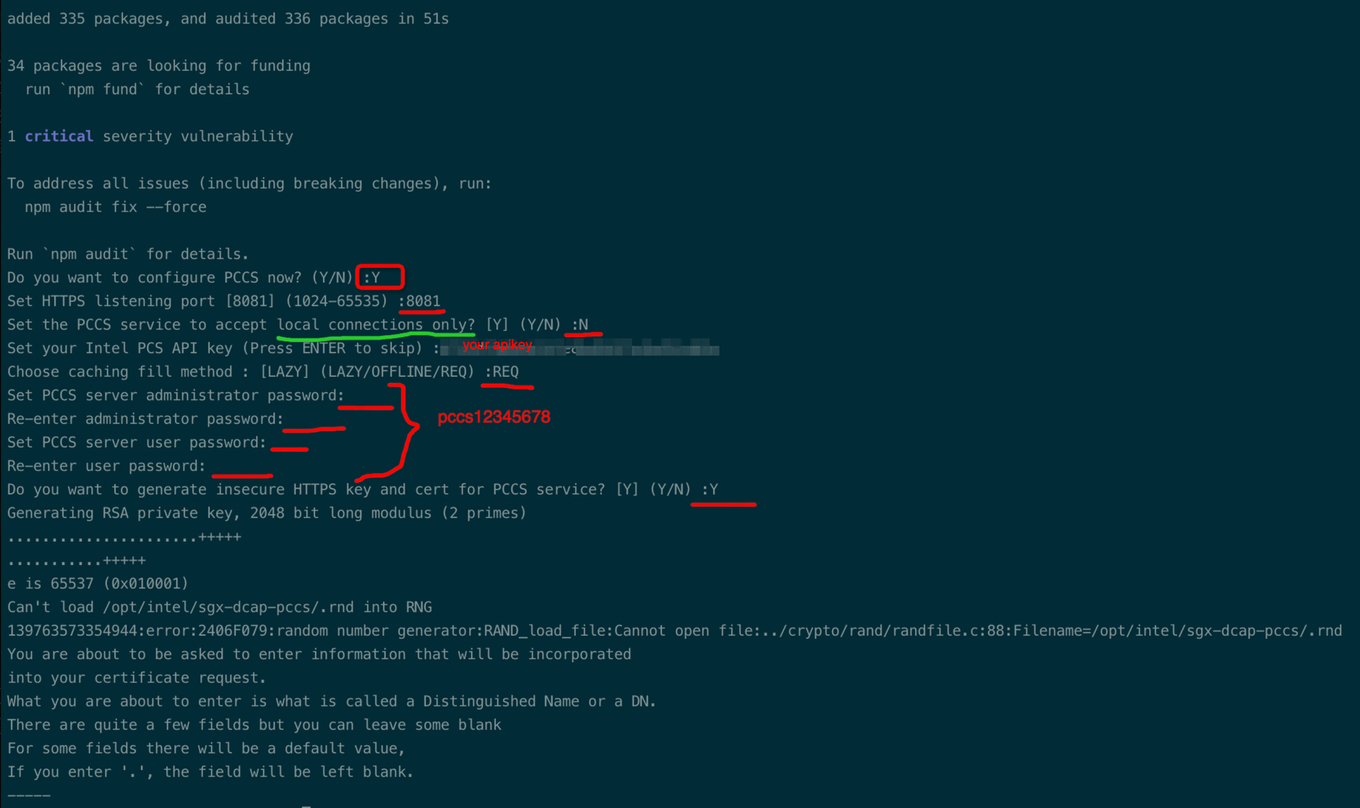
During the installation process, enter the API key you applied for earlier, and set a password for PCCS. Here, we will use "pccs12345678" as an example.
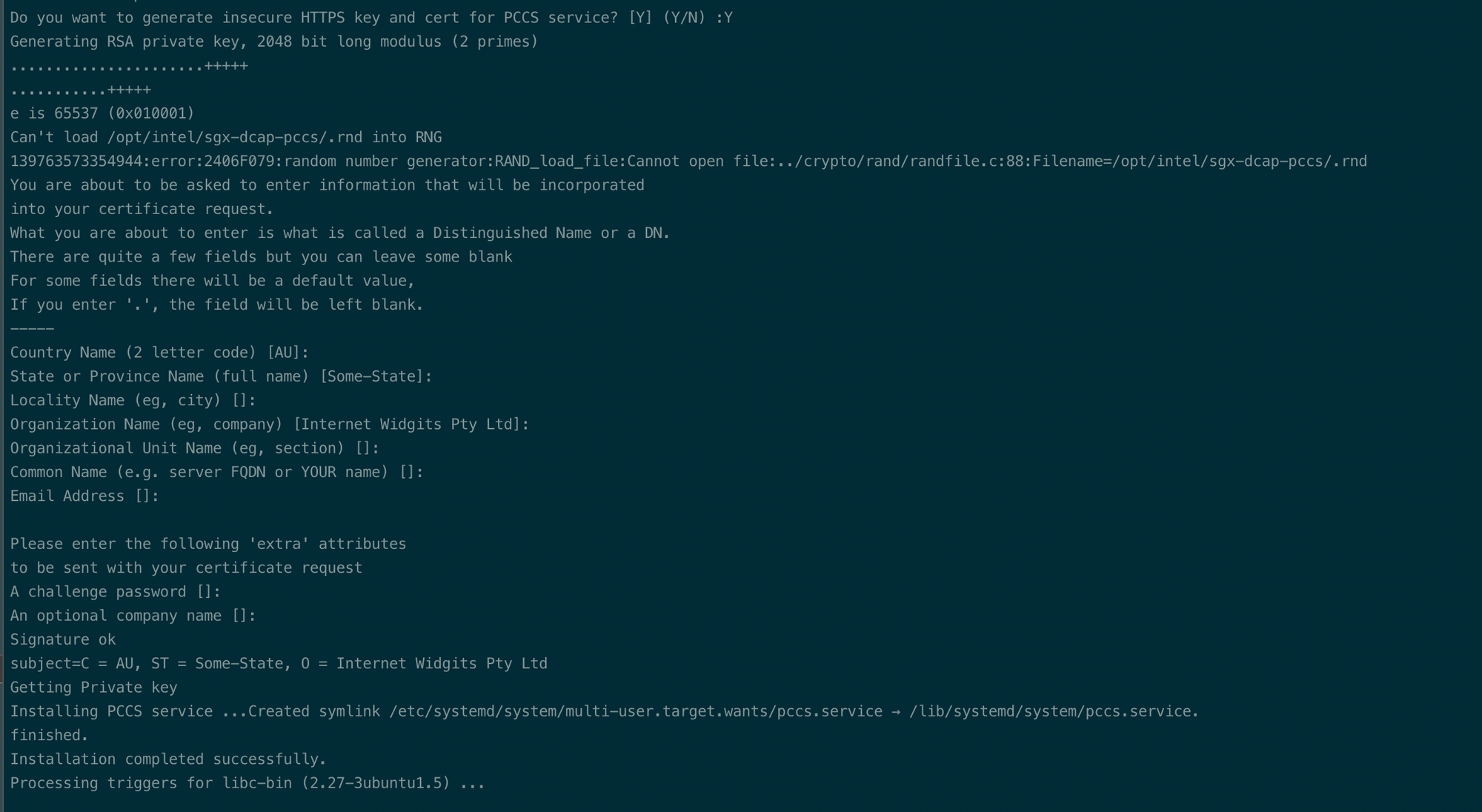
Once you have completed the above steps, you can skip the remaining steps by simply pressing the Enter key.
If you encounter a situation during installation where it prompts that the password is too weak, don't worry. Just keep pressing the Enter key. After exiting, reinstall pccs, and this issue should not occur again.
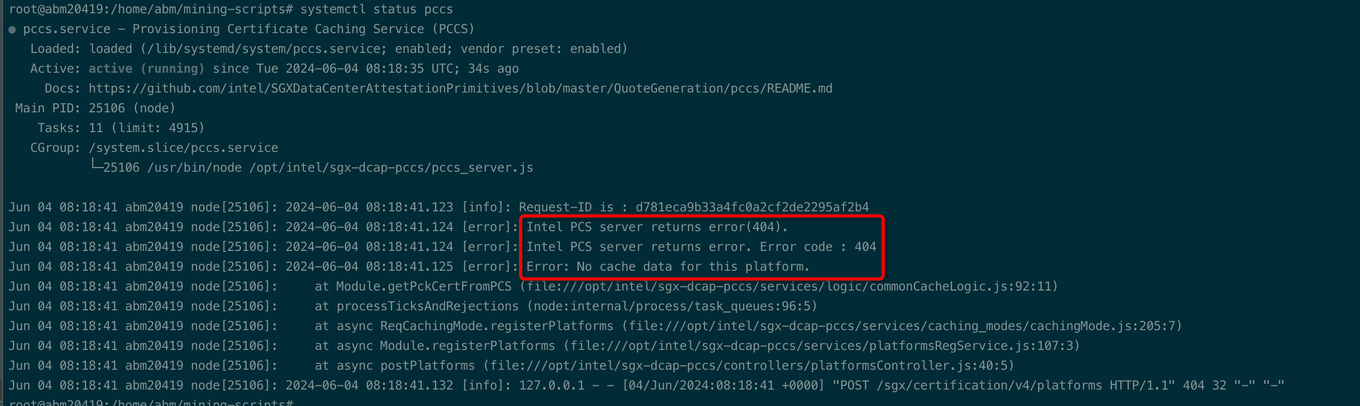
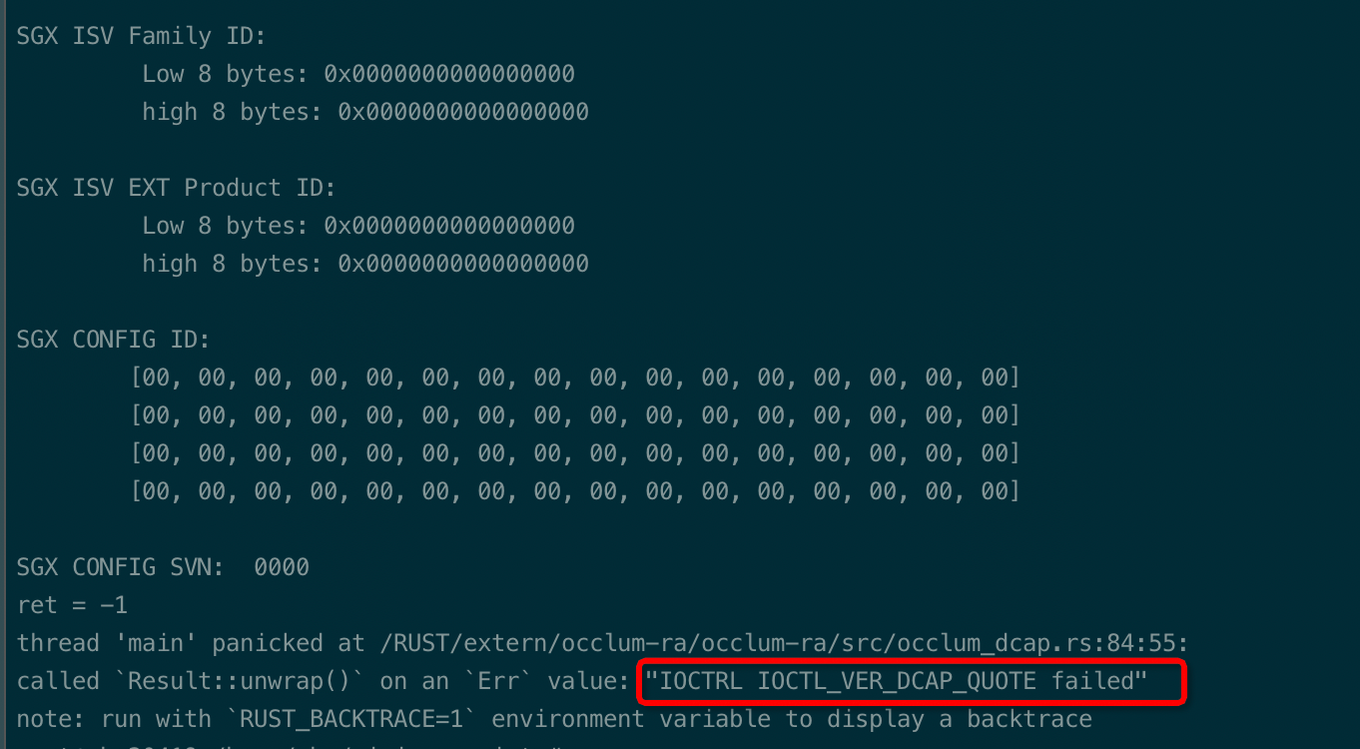
The above steps indicate that the PCCS service installation is complete. However, upon restarting the service, the following error message is encountered:
#### Solution:
Step 1. Install the register tool for SGX
```powershell
sudo apt install sgx-pck-id-retrieval-tool
```
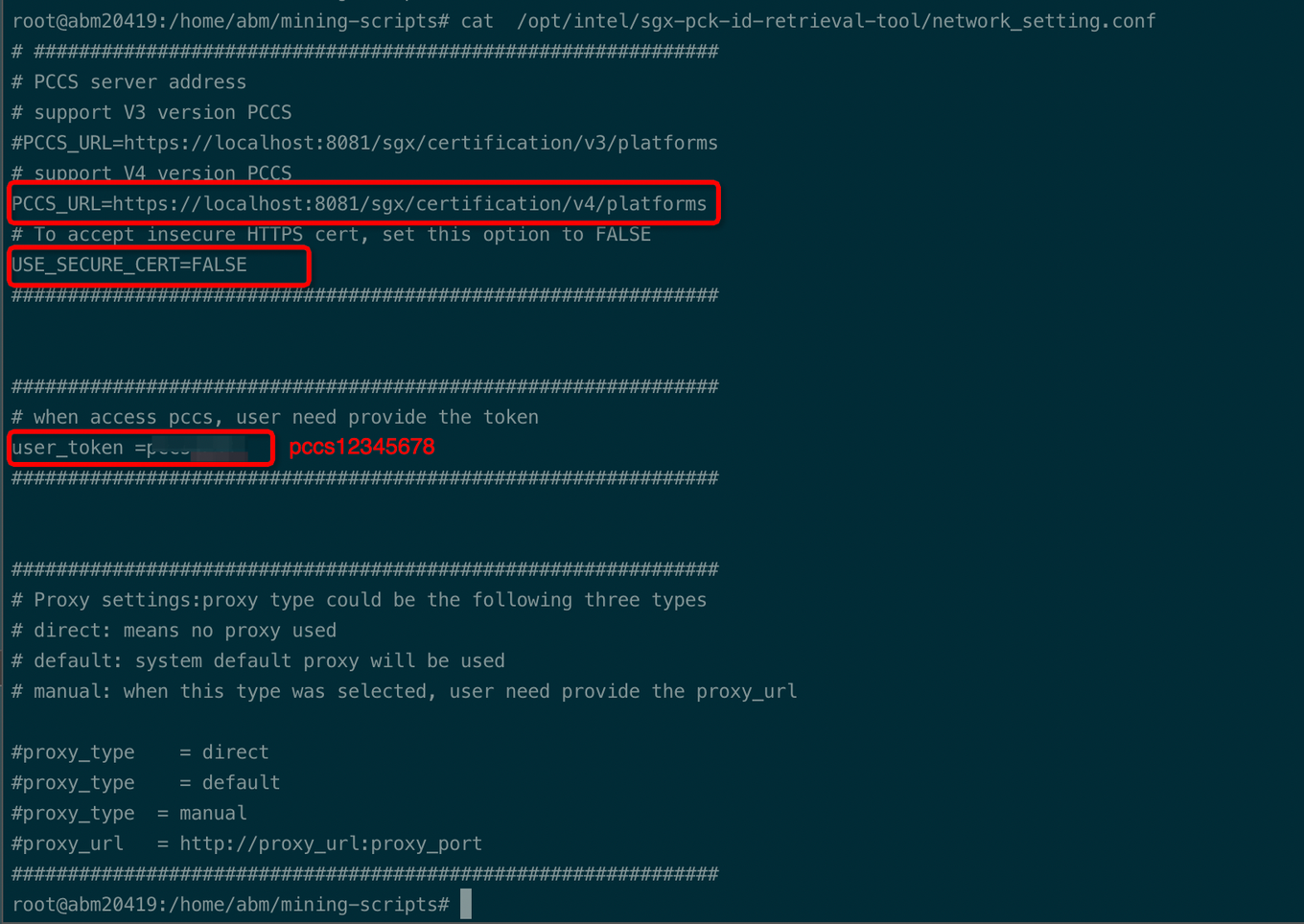
Step 2. Modify the configuration file
```
cat /opt/intel/sgx-pck-id-retrieval-tool/network_setting.conf
```
PCCS\_URL=
Step 3. Use the PCK ID Retrieval Tool
```
PCKIDRetrievalTool
```
```
systemctl status pccs
```
Step 4. Enable the SGX function
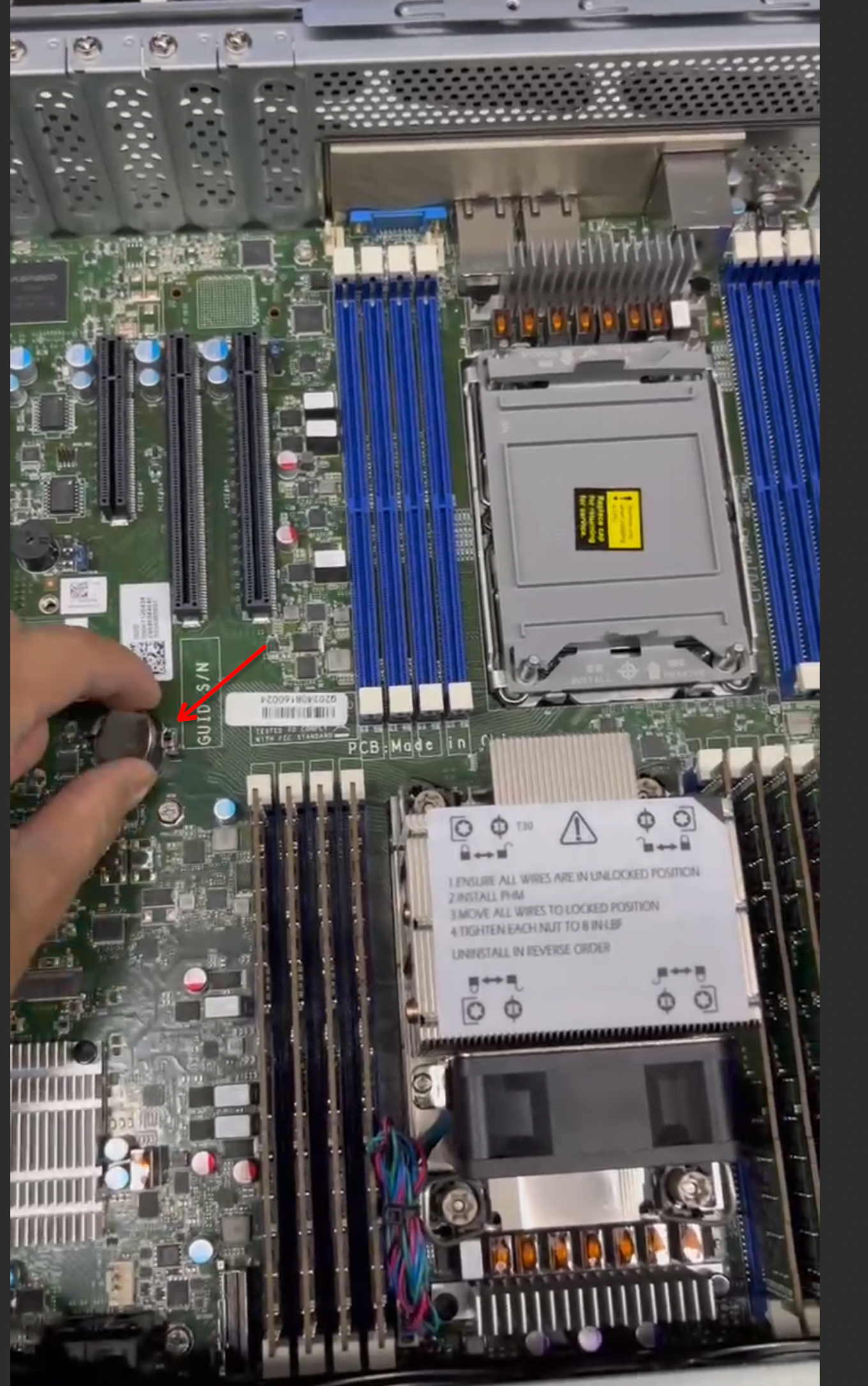
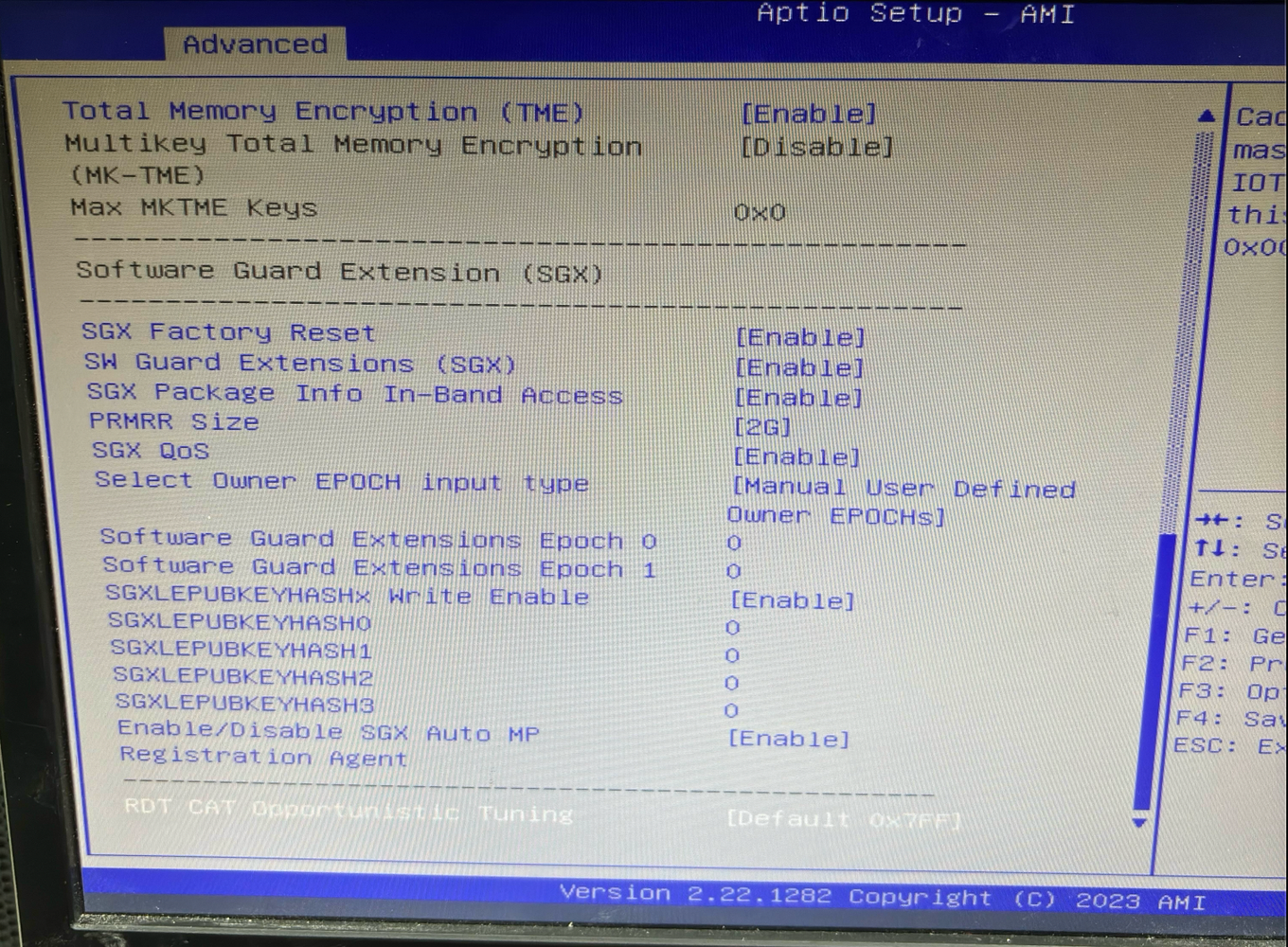
If the error message persists, you may need to reseat the motherboard battery, reset the machine's BIOS, and re-enable the SGX feature, as shown in the following image:
Step 5. Run the PCK ID Retrieval Tool
Keep running the tool until the registration has been done.
Step 6. Start the CRVA processes
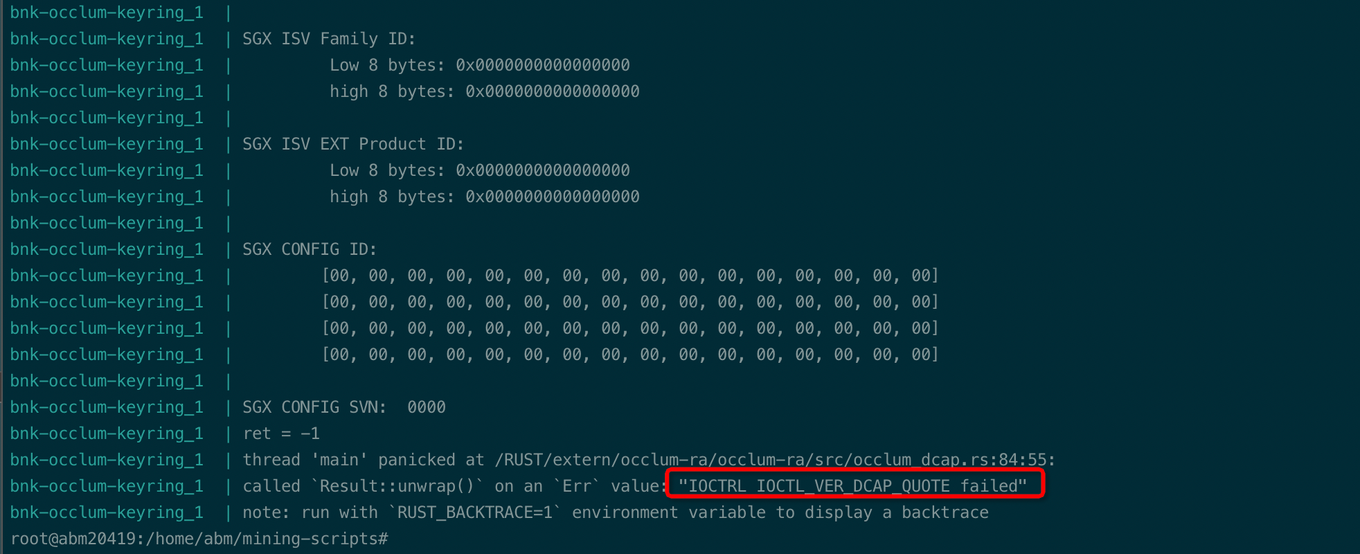
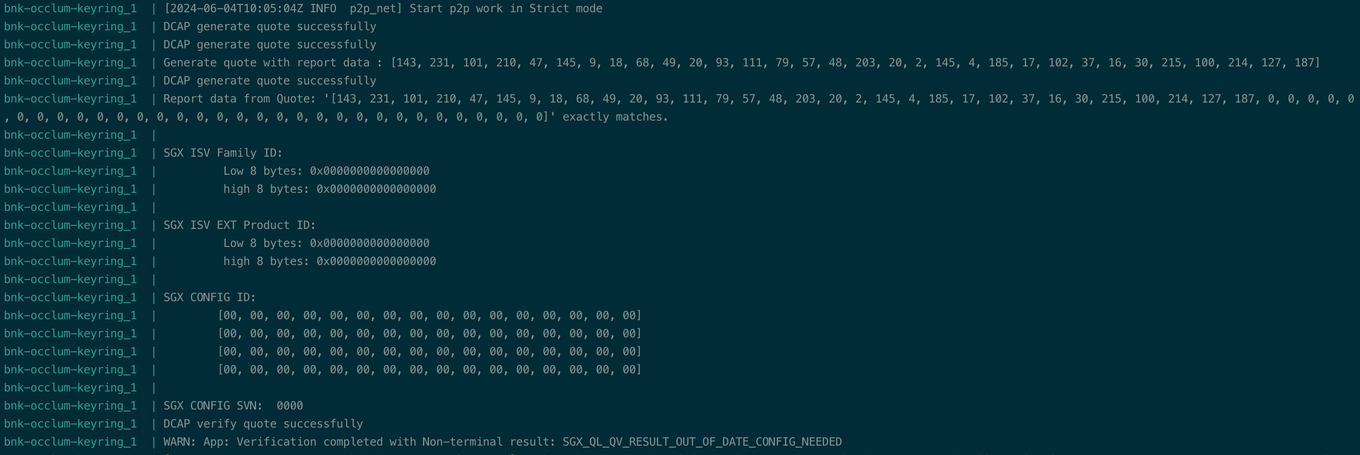
Once SGX registration is successful, you can start the CRVA processes. However, due to data caching, you may encounter the following error message upon the first attempt:
Try more attempts until the registration has been done.